agentura.

Tag: automation

  • Sensors: teach your AI agent to watch, notify, and act

    Sensors: teach your AI agent to watch, notify, and act

    Most AI agents wait to be asked. Sensors flip that — a tiny script that watches one condition on a loop, inside your agent’s own container, and pings your agent the moment something actually changes.

    A lot of useful work in a business is that shape: watch this, and tell me when it changes. New orders. A price. A server. A car cooling down. One of our users recently told their agent to watch their Tesla’s cabin temperature and ping them when it cooled — then, over a single chat, turned it into a full thermostat that switches the AC on and off by itself. We’ll get there. First, let’s build one.

    What a sensor actually is

    Three parts. A script you (or your agent) write at workspace/sensors/<name>.py that checks one thing and prints a single line of JSON. A loop the platform runs for you — every interval_seconds (minimum 10) — executing that script in the agent’s sandbox, with no model call per tick, so it’s effectively free to run. And a delivery that fires only when the condition trips.

    The whole contract your script prints is just {"condition_met": true, "message": "…", "data": {…}}. That’s it.

    You don’t need to read any of the code below to use sensors. The steps that follow show what’s happening under the hood — handy if you’re technical or want to hand-tune one. The everyday way to make a sensor is simply to ask: tell your agent something like “watch X and tell me when Y” and it writes the script, picks the trigger, and wires up the delivery for you. The Tesla thermostat further down was built exactly that way — entirely by chat, with no human touching code.

    Step 1 — Open the Sensors tab

    Open any agent and go to the 🛰️ Sensors tab. You’ll see the contract, a + Add sensor button, and any existing sensors with their last status.
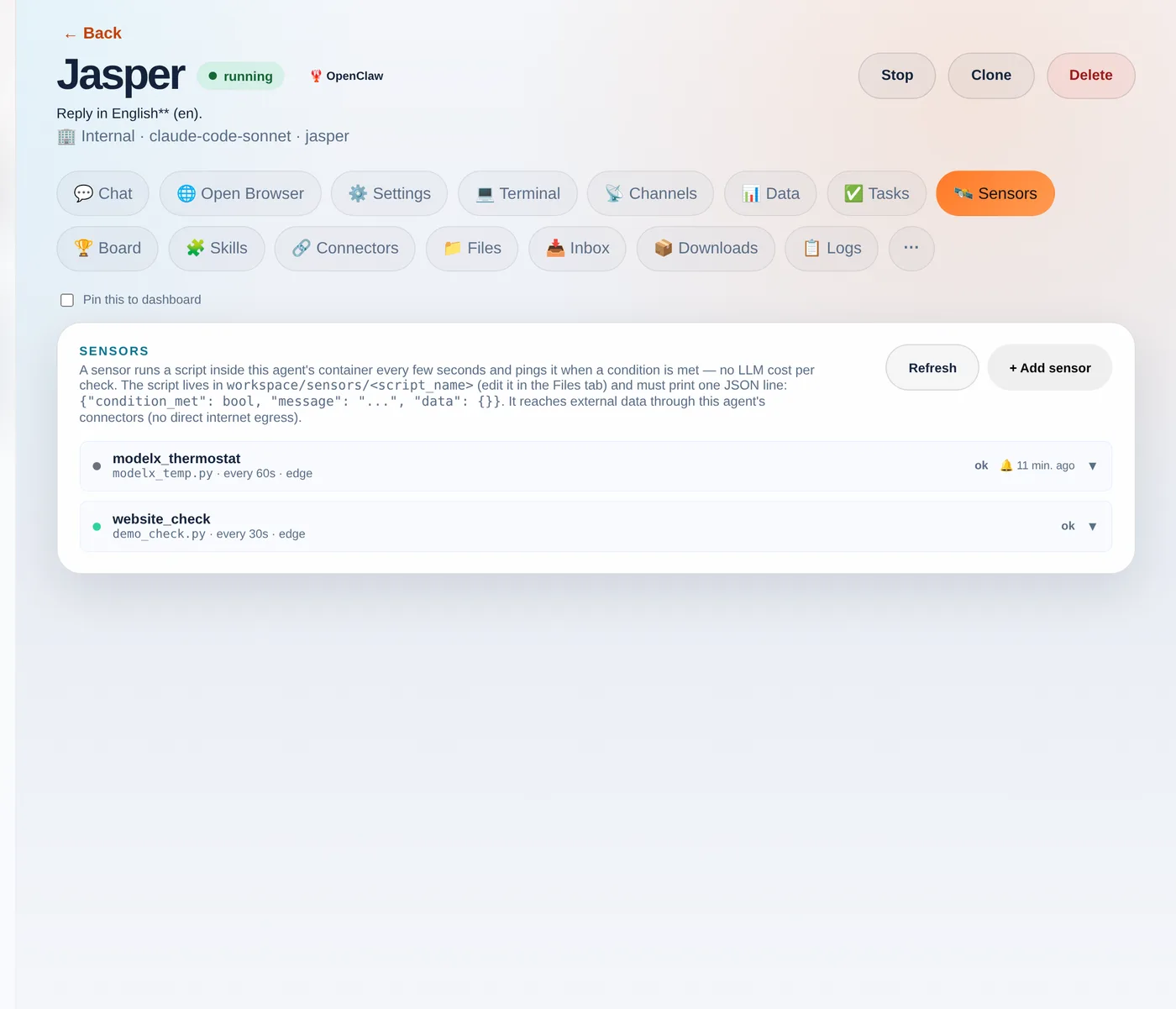
    The Sensors tab. Each sensor shows its script, interval, trigger mode and last status.
    The Sensors tab. Each sensor shows its script, interval, trigger mode and last status.

    Step 2 — Write the script

    In the Files tab, create a file under sensors/ — say demo_check.py — that prints the JSON contract. Here’s a self-contained example you can paste as-is:

    import json, os
    
    # Sensors hand the previous run's "data" back as $SENSOR_PREV_DATA, so a sensor
    # can compare against last time. This demo just counts runs.
    prev  = json.loads(os.environ.get("SENSOR_PREV_DATA", "{}"))
    count = prev.get("count", 0) + 1
    
    print(json.dumps({
        "condition_met": count >= 1,            # <-- your real check goes here
        "message": f"Demo check #{count}: all good",
        "data": {"count": count},
    }))

    The platform hands your script a couple of things for free as environment variables: $SENSOR_PREV_DATA (the previous run’s data, so you can diff against last time) and credentials to call your agent’s connectors.

    Step 3 — Add the sensor

    Back on the Sensors tab, click + Add sensor and fill in the form: a name, the script filename, how often to run, and the trigger.
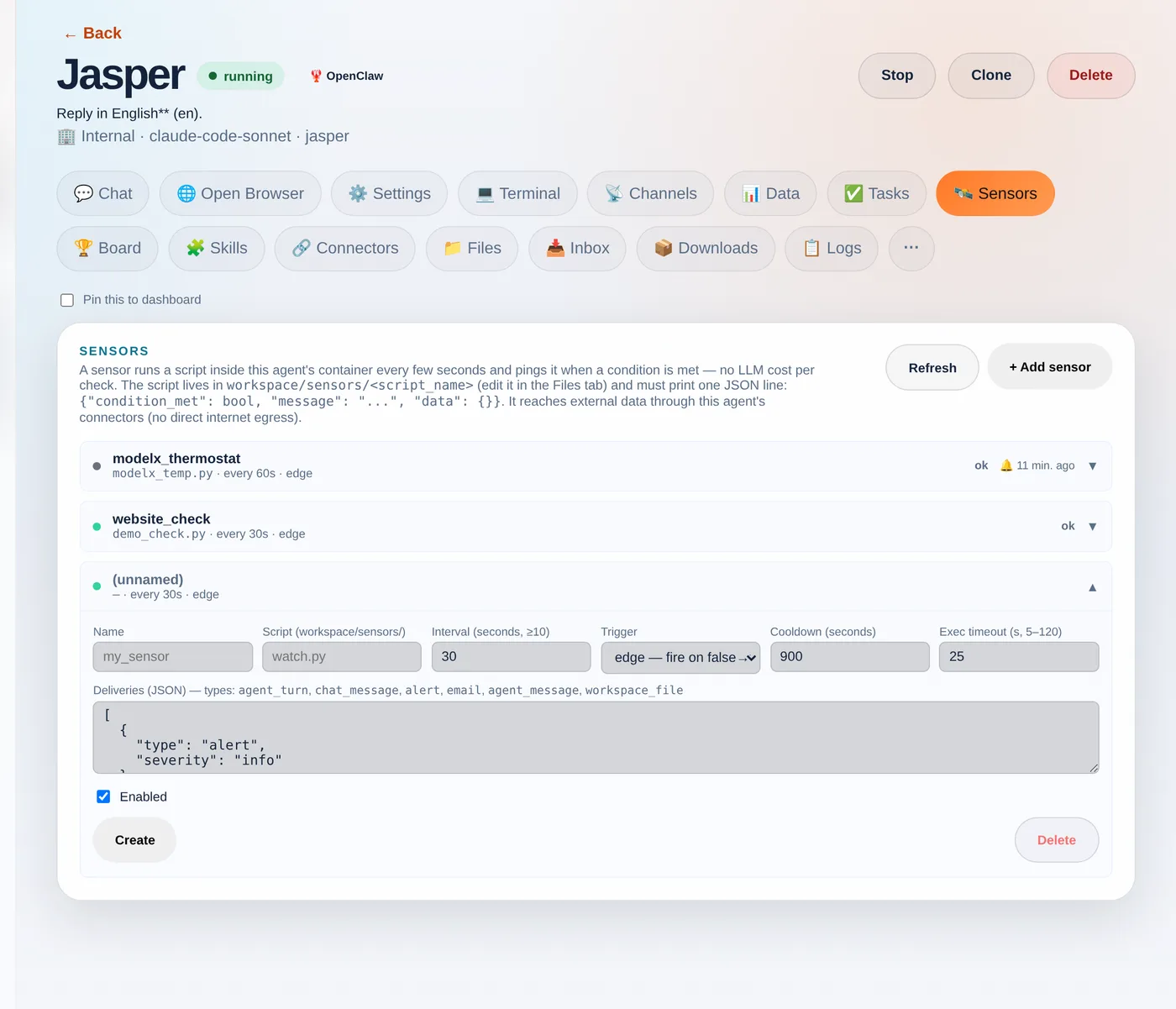
    The new-sensor form: point it at your script and choose how it fires.
    The new-sensor form: point it at your script and choose how it fires.
    • Trigger — edge fires once when the condition flips false→true (best for “tell me when X happens”); level fires on every true tick; change fires whenever the data changes.
    • Cooldown — the minimum gap between pings, so a condition that stays true doesn’t spam you.
    • Deliveries — an alert, an email, a chat_message straight into the chat, a written workspace_file, or an agent_turn that wakes the agent to act.
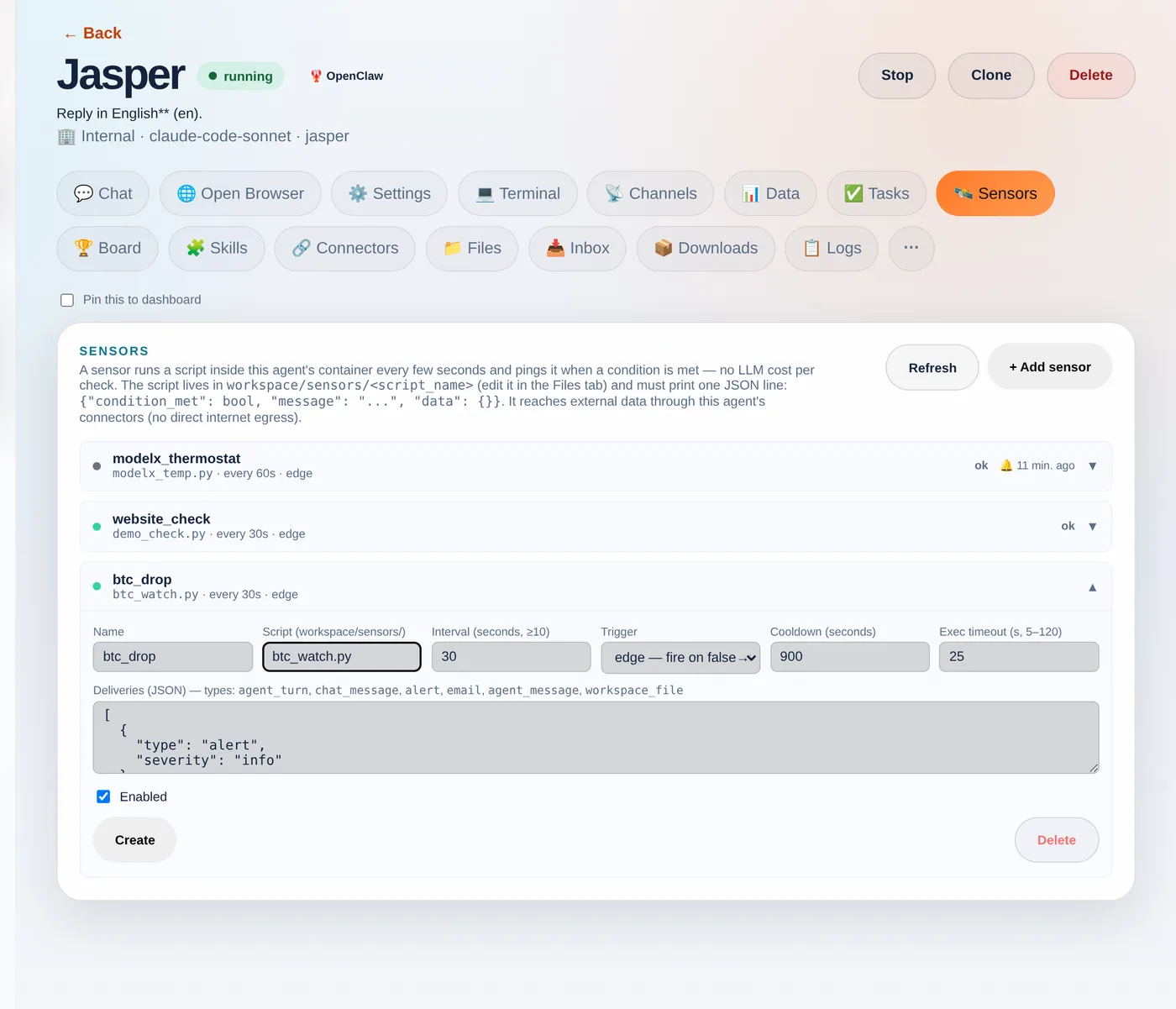
    Name it and point it at your script — here a "btc_drop" sensor using btc_watch.py.
    Name it and point it at your script — here a "btc_drop" sensor using btc_watch.py.

    Step 4 — Test before you trust

    Hit Test (dry-run). It runs your script once, now, and shows exactly what it returned — condition_met, whether it would fire, the message and the data — without changing anything or sending a delivery. The fastest way to iterate until it’s right.
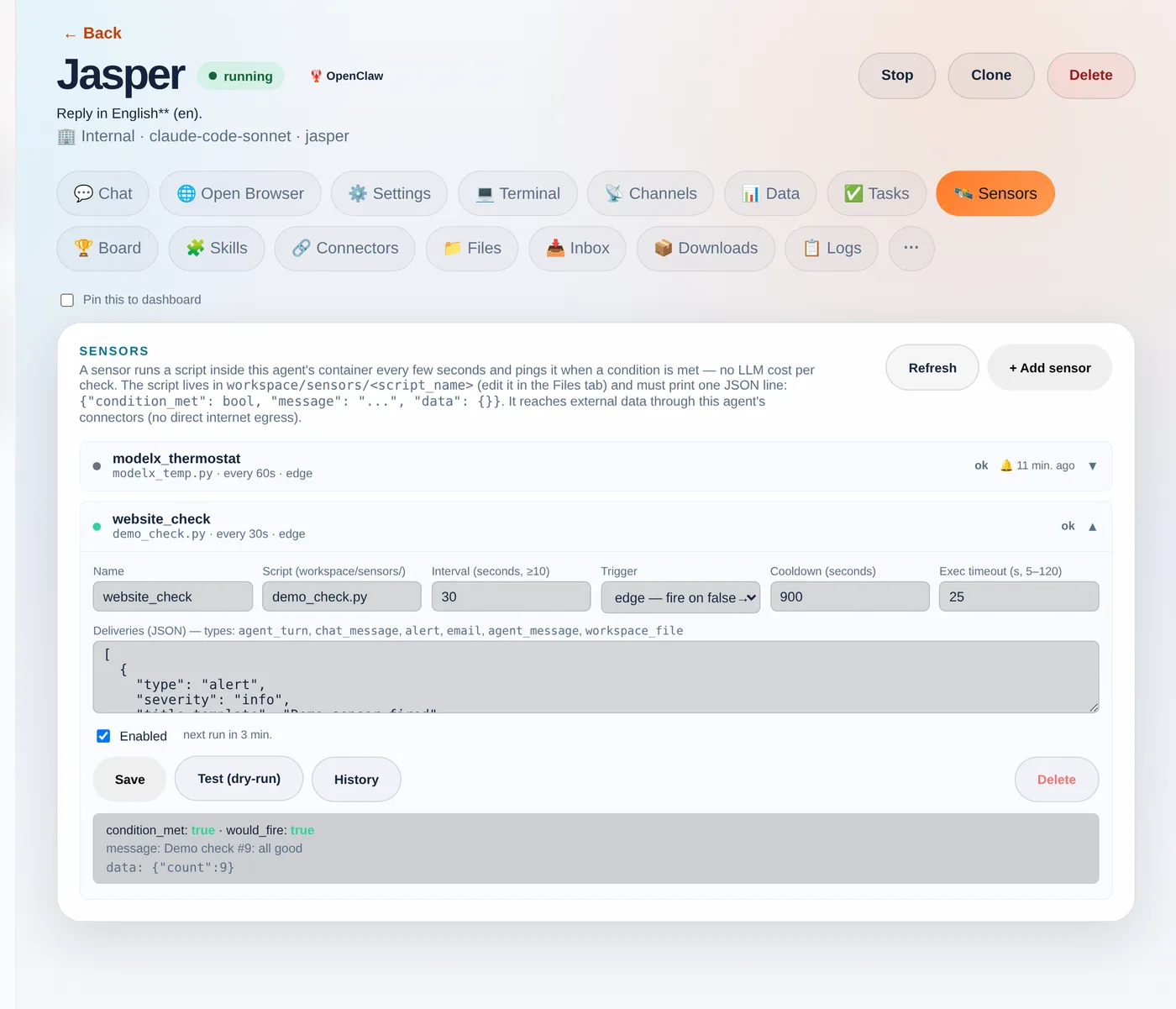
    The dry-run shows condition_met, would_fire and the message + data — with no side effects.
    The dry-run shows condition_met, would_fire and the message + data — with no side effects.

    Step 5 — Watch it run

    Once saved, the sensor runs on its loop. Click History to see every recent run: its status, whether it fired, how long the script took, and the message it printed. This is where “cheap to watch, only act on an edge” becomes visible.
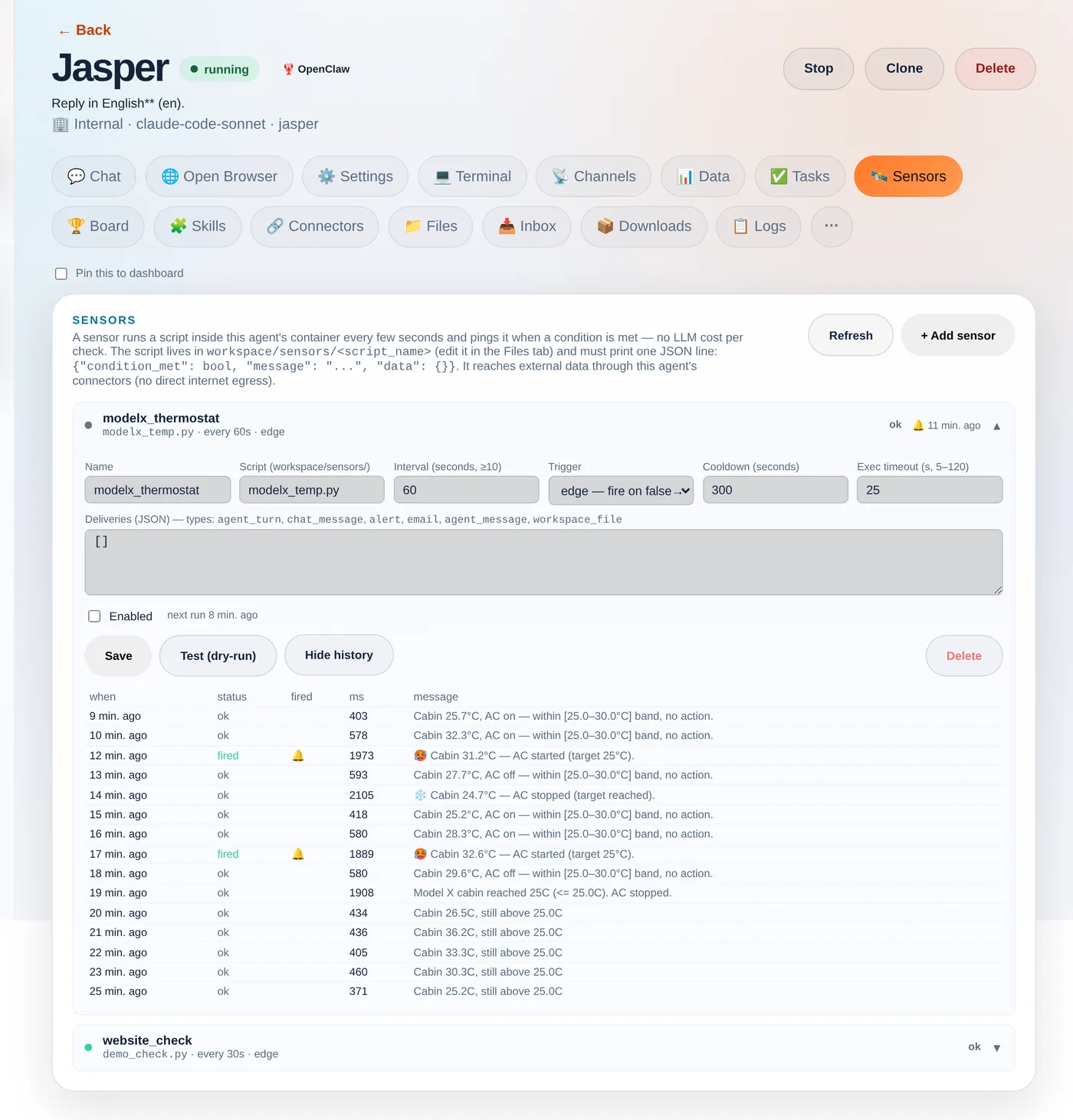
    Real run history from a sensor that watches a Tesla — and acts: it holds the cabin in a 25–30°C band.
    Real run history from a sensor that watches a Tesla — and acts: it holds the cabin in a 25–30°C band.

    The Tesla that built its own thermostat

    Which brings us back to the car. The user asked their agent to set the Model X to 25° and tell them when it reached it. The agent wrote a sensor that polls the car through the tessie connector every 60 seconds. The cabin was baking at 51°C; eleven minutes later, on its own:

    🛰️ Model X cabin reached 24.1°C (target 25.0°C)

    Then they kept going — fire when it goes above 30°, turn the AC off when it hits 25°, and finally “bounce between 30 and 25 indefinitely.” The agent rewrote the sensor each time until it was a genuine thermostat: cabin ≥ 30°C → start the AC; ≤ 25°C → stop it; in between → nothing. The history above is that exact sensor. And notice: the control loop runs as plain code — the model was only involved while authoring it by chat. That’s the whole idea: natural language to write the automation, cheap deterministic code to run it. Your script reaches real data through your agent’s connectors — any REST API, your store, your CRM, or a car:

    import json, os, urllib.request
    
    def connector_get(slug, path):
        req = urllib.request.Request(
            f"{os.environ['INTERNAL_BASE_URL']}/api/internal/connectors/{slug}{path}",
            headers={
                "X-Internal-Secret": os.environ["ORCHESTRATOR_SECRET"],  # injected per agent
                "X-Company-Id":      os.environ["COMPANY_ID"],
                "X-Agent-Slug":      os.environ["AGENT_SLUG"],
            })
        return json.load(urllib.request.urlopen(req, timeout=15))
    
    # Read a Tesla's cabin temperature through the Tessie connector
    state  = connector_get("tessie", "/<VIN>/state?use_cache=false")
    inside = state["climate_state"]["inside_temp"]
    
    print(json.dumps({
        "condition_met": inside <= 25.0,
        "message": f"Cabin {inside}°C (target 25°C)",
        "data": {"inside_temp": inside},
    }))

    How Agentura sensors are different

    Most automation and “AI agent” platforms hand you a fixed menu: a time trigger, a webhook trigger, and a no-code condition builder where you pick a field and an operator. That’s neat — until the thing you want to watch doesn’t fit the menu. The nearest relatives in spirit are Apache Airflow’s sensors (poll until a condition is met) and the newer idea of “ambient agents” (agents woken by events instead of prompts) — but those are still scaffolding a developer wires up by hand.

    Here, your agent writes the sensor itself, as real, bespoke code — generated on the spot for exactly what you asked. There’s no fixed list of supported conditions to choose from: describe it in plain language and the agent can chain several API calls, compute a rolling average, join two data sources, diff against the last run, decide, and act. Because it’s genuine code running against your connectors, the ceiling is whatever code and your integrations can do — in practice, the sky’s the limit, not whatever some settings form happened to anticipate. And it stays cheap: the loop is plain code with no model call per tick, so you can watch something every few seconds without spending tokens — the AI only steps in to build or change a sensor, or when a trip is set to wake it to act.

    A few rules of thumb

    • Default to edge + a cooldown — the difference between “tell me when it hits 25°” and a ping every 60 seconds while it sits there.
    • Checks are free; actions aren’t. Polling and conditions are plain code. Only agent_turn spends a model call — gate it behind the trigger.
    • Minimum interval is 10 seconds, and Test (dry-run) until the JSON is right before you let it loose.

    Sensors give your agents something most assistants lack: a sense of their surroundings, and the initiative to act on it. Point one at whatever you keep checking by hand and let it watch, so you don’t have to.


    Build your team →

  • Watch your AI agent browse the web — live

    Watch your AI agent browse the web — live

    Some tasks don’t live behind a tidy API. They live on a website — a supplier portal, a tracking page, a form that has to be filled in by hand. So we gave Agentura agents a real browser, and put a live mirror in front of it so you can watch them work.

    “The agent can browse the web” usually means it fetched a page and summarized the text. That’s not browsing — that’s reading. Real browsing means clicking, typing, navigating multi-step flows, and dealing with pages that only make sense once they’ve rendered. Agentura agents drive an actual browser to do exactly that.

    Watch it happen, in real time

    The part people remember is the live mirror. When an agent opens the browser, a panel streams what it’s doing as it does it — pages loading, fields being filled, buttons being clicked. It isn’t a screenshot after the fact; it’s a real-time view of the session. You can see the agent’s reasoning turn into action, step by step.

    A real browser the agent drives — and a live mirror so you’re never guessing what it did.

    Three tiers, one capability

    Under the hood there are three complementary modes, so the right one fits the task:

    • Sandbox browsing — the default. A safe, public-web browser the agent uses for research and routine navigation, mirrored live to your screen.
    • Your own device — for sites that need your login. Pair and approve a device, and the agent drives a browser on your machine, inside sessions you’re already signed in to — so logins stay where they belong, on your device.
    • Co-browsing — the agent can build and serve an interactive page you step through together, turning a lookup into a shared workflow.
    Agentura innovations grid highlighting a watchable live browser, real email identities, and onboarding-as-an-agent
    The live browser is one of several capabilities designed to be felt, not just listed.

    Why a live view changes the trust equation

    Autonomy is only useful if you trust it, and trust comes from transparency. A black-box agent that “handled it” leaves you wondering what it actually did. A watchable browser removes the doubt: you can glance at the mirror, confirm it’s on the right page doing the right thing, and step in if needed. It’s the difference between hoping and knowing.

    The web wasn’t built for machines, but most of your day still happens there. Now an agent can navigate it the way you would — and let you watch over its shoulder.

    See it in action →

  • Run a Telegram agent for your business

    Run a Telegram agent for your business

    Telegram is fast, open, and where a lot of your customers and team already are. Give them an agent that’s just as quick to respond.

    The same brain, a new channel

    Agentura runs agents on Telegram using the exact same agent brain that powers every other channel. It answers questions, books appointments, and takes real actions through connectors — there’s no second-rate, channel-specific version. What your agent knows and can do on the web or on WhatsApp, it knows and can do on Telegram too.

    That consistency matters: customers get the same answers and the same quality no matter where they reach you.

    Support, internal bots, and communities

    Telegram isn’t only a support line. The same agent works as an internal bot for your team and as a helpful presence in your communities and group chats. One setup, several jobs.

    • Customer support that answers and acts, not just deflects
    • Internal bots that help your team get things done
    • Community channels where members get instant, accurate replies

    An agent that can only chat is a fancy FAQ. The interesting part starts when it can place the order or issue the invoice the conversation was actually about.

    Connect it without code

    You don’t write any code to put your agent on Telegram. You connect the channel, and the agent starts working. When you’re ready to give it more capability, connectors let it move from talking to doing — placing orders, issuing invoices, and more, depending on what you’ve enabled.

    Everything in one dashboard

    Telegram conversations don’t live in a silo. They flow into the same unified dashboard as the rest of your channels, so you always have full visibility — you can follow what’s happening and review exactly what the agent said and did, conversation by conversation. One view, every channel, full context.

    For a channel that prizes speed, that’s a fitting match: an agent that’s instant to respond and consistent across everywhere your business shows up.

    Run a Telegram agent for your business →

  • Server automation over SSH

    Server automation over SSH

    A DevOps assistant that can only describe the fix is a tab you read at 2am. One that can run the command is the reason you stay asleep.

    A real shell, not advice

    The ssh-server connector gives your agent an ssh_run tool — the ability to execute commands directly on your servers. That’s the line between an assistant that suggests what to type and one that actually does it: checking a service, tailing a log, restarting a process, running the playbook. Your agent stops narrating ops work and starts performing it.

    Built for ops automation

    This is where an agent earns its keep as a DevOps teammate. Routine checks, deploys, health probes and the repetitive plumbing of running infrastructure all become things your agent handles on request — or on a schedule. The kind of work that’s too small to page a human for but too important to skip is exactly what ssh_run is good at.

    ssh_run is powerful by design — which is precisely why you scope it carefully. Give an agent access to the servers it needs, and nothing more.

    Power with a short leash

    A tool that can run anything on your servers deserves real discipline. Credentials are encrypted, and the connector pairs with need-to-know access control so each agent reaches only what its job requires. Treat the scope as part of the setup, not an afterthought, and you get serious automation without handing the keys to your whole fleet.

    • ssh_run — execute commands on your servers from a conversation.
    • Encrypted credentials — secrets stay locked, never in the prompt.
    • Scoped tightly — need-to-know access keeps the blast radius small.

    Why it matters

    Most operational toil isn’t hard, it’s just constant and it lands at inconvenient hours. An agent with a carefully scoped ssh_run tool can carry that load — acting on your infrastructure instead of merely talking about it.

    Give your DevOps agent a real shell →